IPS Watch
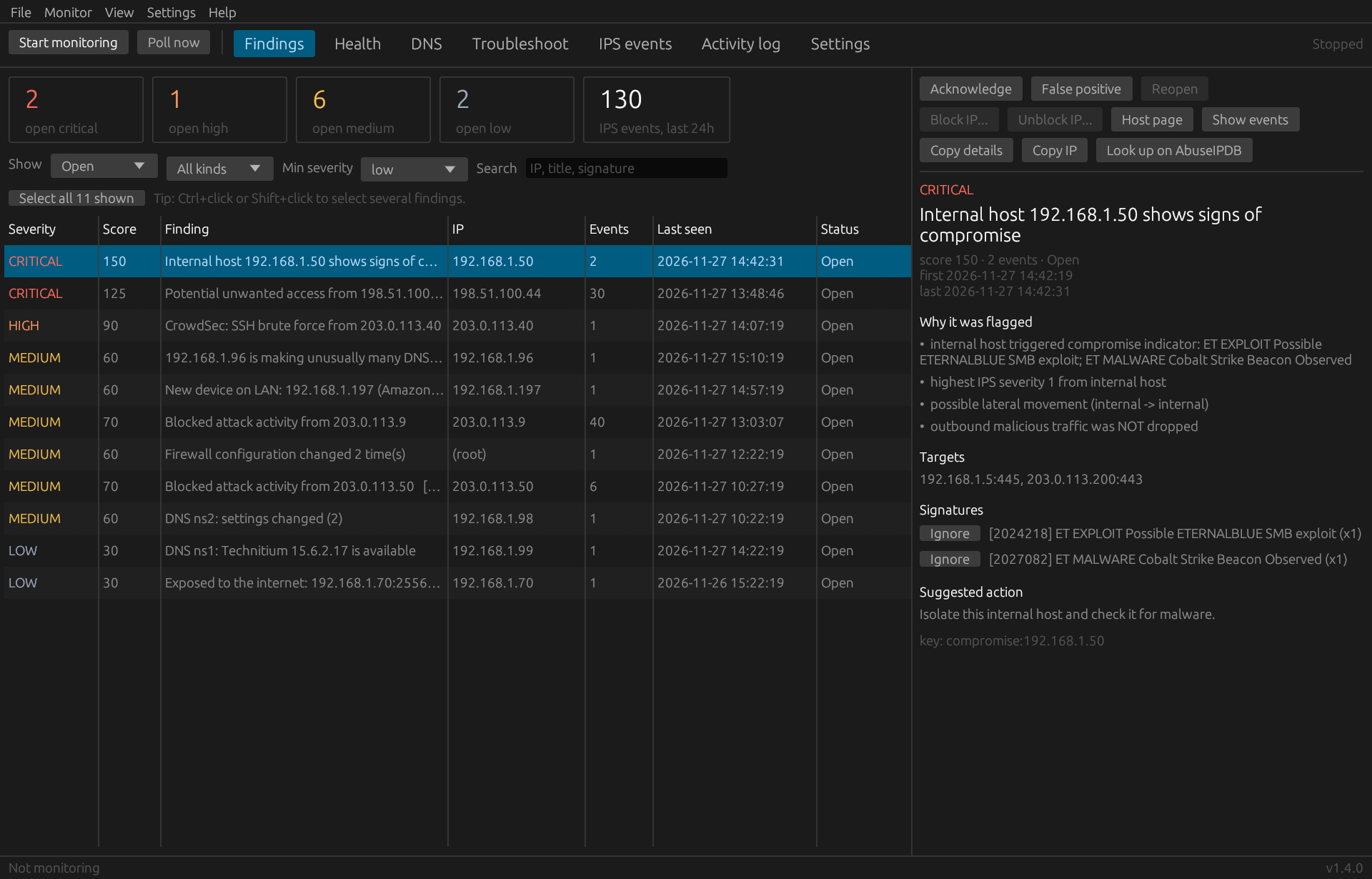
IPS Watch is a Windows desktop app (with a command-line build) that collects Suricata IPS alerts from OPNsense, stores them in SQLite, correlates them with the firewall log and raises findings when something looks like real unwanted access rather than background noise. It also watches the firewall’s own health and your DNS servers (Technitium or OPNsense’s built-in Unbound).
What it does
- Captures IPS alerts through the OPNsense API (and optionally a realtime syslog feed), and scores them per source so a port scan, a brute-force run or a compromised internal host stands out.
- Correlates with the firewall log: an alert matters more when the firewall actually let the traffic through.
- Checks the firewall: gateways, services, memory, states, disk, reboots, port-forward exposure, new devices on the LAN and configuration changes.
- Watches DNS: servers answering, upstream failures, blocklists, unusual clients, NXDOMAIN bursts (possible malware) and settings changes.
- Alerts and responds: Windows toasts, Slack / Discord / webhook, ntfy and email; acknowledge or mark false positives; block an IP through a firewall alias, by hand or automatically.
- Runs quietly: lives in the system tray, starts with Windows, no admin rights needed.
 OPNsense ──(REST API poll: IDS alerts, firewall log, health)──┐
          ──(remote syslog: Suricata EVE JSON, optional)───────┤
 DNS servers ──(Technitium API / Unbound via OPNsense API)─────┤
                                                               ▼
                     normalize → SQLite → detection rules → findings
                                                               │
                                  toast / webhook / ntfy / email, block via alias
Two ways to use it
| Desktop app (GUI) | Command line (CLI) | |
|---|---|---|
| Program | IPSWatch.exe | ipswatch-cli.exe (Windows), ipswatch-cli (Linux) |
| Settings | Settings tab, with validation and test buttons | config.toml in a text editor |
| Monitoring | Background, from the tray | run in the foreground, or poll from Task Scheduler / cron / systemd |
| Docs | Desktop app | Command line |
Both use the same engine and, on Windows, the same settings file (%APPDATA%\ipswatch\config.toml) and database, so you can mix them.
Where to start
- Install and first run
- Set up OPNsense: IPS mode, an API user, and optionally a Drop policy and a block alias
- Tune it: GUI settings or the config file reference
- Learn how findings are scored