Install and first run
- Requirements
- Install the desktop app
- Build from source
- First run (desktop app)
- First run (command line)
- Where things are stored
Requirements
- Windows 10 or 11 (64-bit) for the desktop app. The CLI also builds and runs on Linux.
- OPNsense with Intrusion Detection enabled, and an API key for a user with the right privileges (see OPNsense setup).
- Optional: Technitium DNS servers, or OPNsense’s Unbound, for the DNS checks.
Install the desktop app
Run IPSWatch-Setup-<version>.exe.
- It installs for your Windows account only (no admin rights) into
%LOCALAPPDATA%\Programs\IPS Watch, adds a Start menu entry, and shows up in Settings → Apps for uninstalling. - Running a newer installer upgrades in place: it closes the running copy and starts the new one.
- Uninstalling keeps your settings and history in
%APPDATA%\ipswatch\. IPSWatch.exealso runs on its own as a portable file.
Build from source
You need the Rust toolchain (rustup, MSVC target). For the installer you also need Inno Setup 6 (winget install JRSoftware.InnoSetup).
.\build.ps1
# runs the tests, builds dist\IPSWatch.exe and dist\ipswatch-cli.exe,
# and (with Inno Setup 6 installed) dist\IPSWatch-Setup-<version>.exe
On Linux, build only the CLI:
cargo build --release --no-default-features --bin ipswatch-cli
First run (desktop app)
- The app opens on Settings → Firewall connection. Enter the firewall URL and API key and secret, click Test firewall connection, then Save settings. Monitoring starts on its own.
- Under Settings → Application, tick Start with Windows (also in the tray menu and the Settings menu). Closing the window hides it to the tray; use Quit in the tray menu or File → Quit to exit.
- Optional: add your DNS servers under Settings → DNS servers, and notifications under Settings → Notifications.
To try it without a firewall, use File → Import eve.json… with samples/eve-sample.json from the repository.
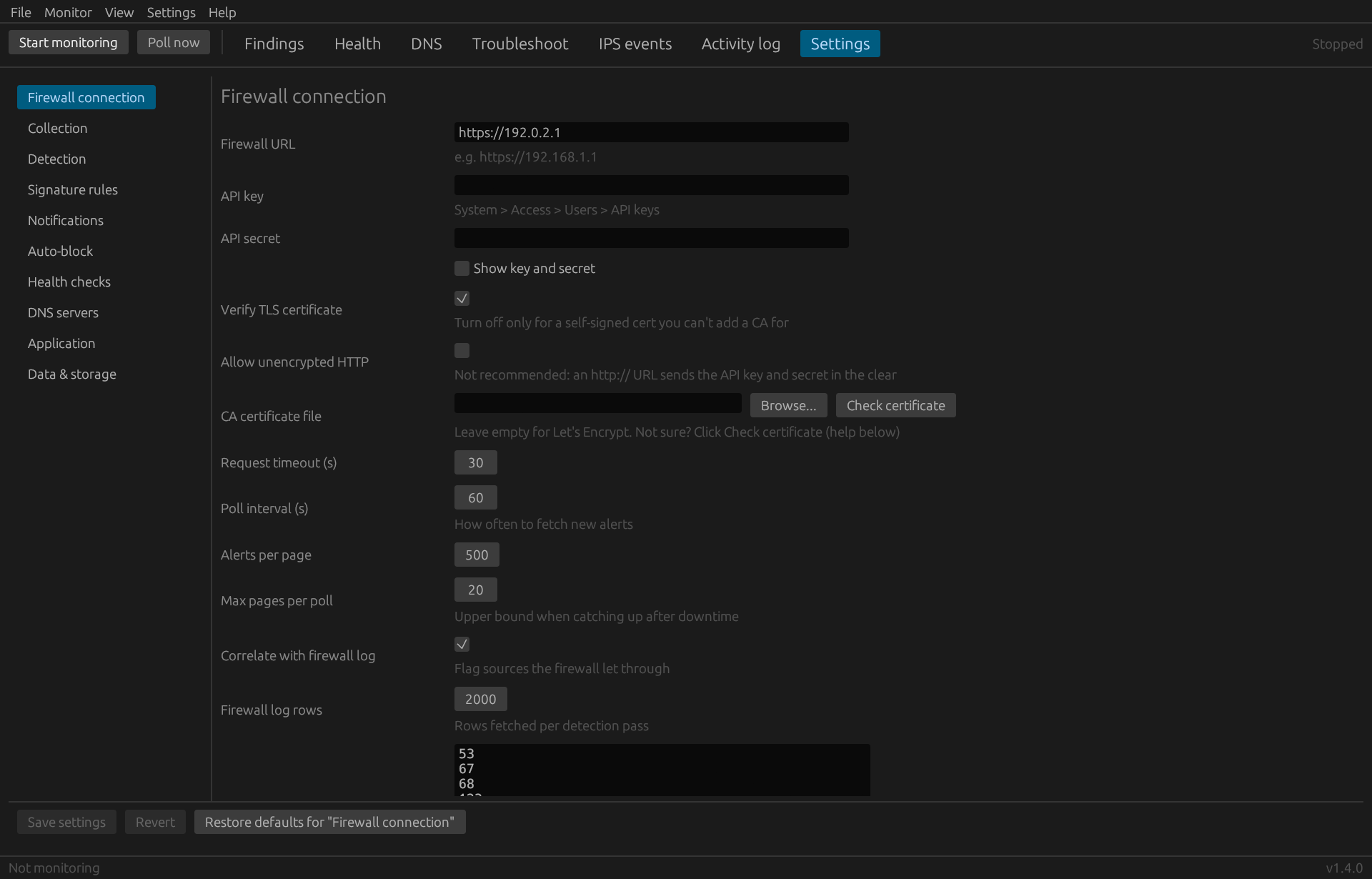
First run (command line)
notepad $env:APPDATA\ipswatch\config.toml   # set [opnsense] url, api_key, api_secret
ipswatch-cli check                          # verify API access and IDS status
ipswatch-cli run                            # monitor in the foreground (Ctrl+C to stop)
The CLI reads the same settings file as the app. The first time the desktop app saves it, the secrets are encrypted with DPAPI; the CLI reads both encrypted and plain values. See the config file reference for every option.
Where things are stored
| What | Where (Windows) |
|---|---|
| Settings | %APPDATA%\ipswatch\config.toml |
| Database (events, findings, devices) | %APPDATA%\ipswatch\ipswatch.db |
| Daily database backups (7 kept) | %APPDATA%\ipswatch\backups\ |
| Log | %APPDATA%\ipswatch\ipswatch.log |
| Program | %LOCALAPPDATA%\Programs\IPS Watch\ |
If the database is ever damaged (for example by a forced reboot), IPS Watch repairs it on start from the newest backup plus whatever it can salvage, keeps the damaged files in a damaged-<time> folder, and tells you with a notification.